Pausing a film on a PC across the room shouldn't mean getting up for the keyboard. A media remote — play/pause, skip, volume, mute — is the most-used remote there is, and your phone can be one. This guide explains what actually controls playback on a computer, how to build a media page on your phone, and when a cheap hardware remote is the better answer.
How media control works on a PC or Mac
Windows and macOS both have system media keys: Play/Pause, Next, Previous, Volume Up/Down and Mute. When you press one, the system sends it to whatever is currently playing — Spotify, a YouTube or Netflix tab in your browser, Apple Music, Windows Media Player and most video players. That's why a remote that sends media keys works with every player without setup, while a remote that sends ordinary shortcuts (like Space) only works when the right window has focus.
A ready-made media page
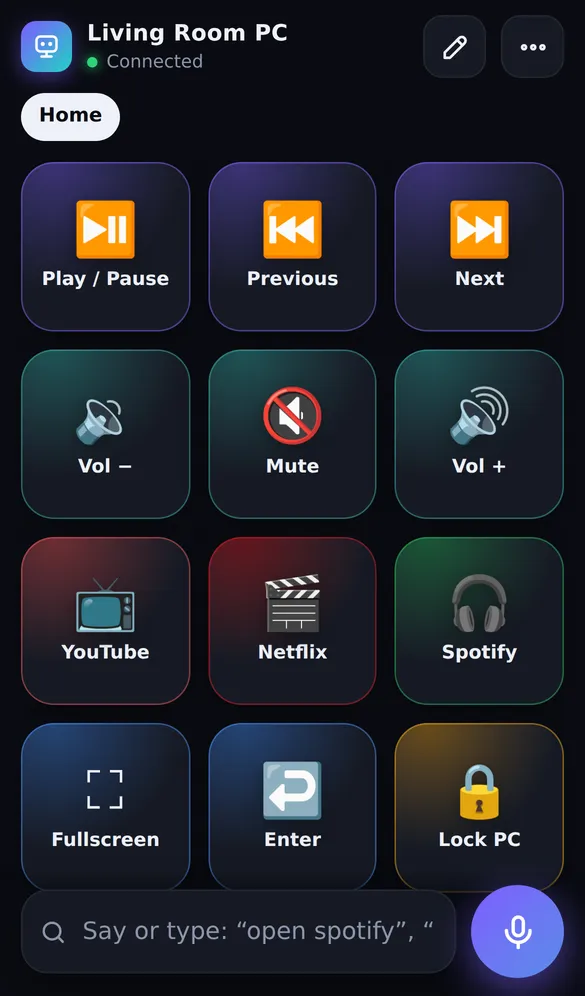
With a phone button deck, a 12-button media page covers almost everything you do while watching or listening:
| Row | Buttons | Action type |
|---|---|---|
| 1 | Previous · Play/Pause · Next | Media keys |
| 2 | Vol − · Mute · Vol + | System volume |
| 3 | YouTube · Netflix · Spotify | Open a website or app |
| 4 | Fullscreen (F11 or F) · Enter · Lock / Screen off | Keys and power |
That's SofaDeck's default page, shown below, so in practice you install it, pair your phone and you already have a media remote. It fits in the free version, which allows one page of 12 buttons.
Volume by voice
Volume buttons are fine for small changes, but saying volume 20
when an advert blares is faster. SofaDeck's voice remote understands volume 30
, turn it up by 20
, mute
, pause
, next track
and open Spotify
. The full list is on the voice commands page.
Per-app tips
- Spotify: media keys control the desktop app. To control Spotify itself from the phone's Spotify app instead, use Spotify Connect — our Spotify guide compares the two.
- YouTube and Netflix in a browser: media keys work in Chrome, Edge, Firefox and Safari. For full screen, YouTube and Netflix both use the F key; a single-key button for it is free.
- VLC and other players: most respond to media keys; if one doesn't, check its hotkey settings for a "global" or "media keys" option.
- Mac: allow SofaDeck under System Settings → Privacy & Security → Accessibility so it can send media keys.
When a hardware remote is better
A phone remote has labels, voice and app launching, and costs nothing. A physical remote has buttons you can find in the dark and doesn't depend on who has their phone. For a shared living-room PC, it's reasonable to have both. Common options:
- USB media remotes for PC — a small receiver and an IR or RF remote with media keys; no software.
- Bluetooth media remotes — pair like a keyboard; also work with phones and tablets.
- Wireless keyboards with a touchpad and media keys — the sofa keyboard for when you need to type.
As an Amazon Associate we earn from qualifying purchases.
Get started
SofaDeck runs on Windows 10 or Windows 11 (64-bit) and macOS 11 Big Sur or later, on Apple silicon or Intel. Pair your phone with a QR code and the media page is ready. For a whole living-room PC setup, read the HTPC remote guide.
Download for WindowsFrequently asked questions
Which apps respond to a phone media remote on a PC?
Anything that responds to your keyboard's media keys: Spotify, Apple Music and iTunes, browsers playing YouTube, Netflix or other sites, Windows Media Player and most other players. A remote that sends media keys works with all of them without per-app setup.
Can I set the PC's volume to an exact level from my phone?
With SofaDeck, yes: say or type 'volume 30' and the system volume goes to 30%. 'Volume up', 'volume down', 'mute' and 'unmute' work too, in the free version.
Should I buy a hardware media remote instead?
If several people use the PC, or you want buttons you can press without looking, a cheap USB or Bluetooth media remote is worth it. A phone remote wins on labels, voice, launching apps and costing nothing extra.