Disclosure: we make SofaDeck, which is a button-and-voice remote, not a mouse app. This guide covers the mouse apps honestly and says where SofaDeck fits. Details were checked on each vendor's own site on 3 October 2026.
A phone makes a surprisingly good stand-in for a mouse and keyboard. The touchscreen works as a trackpad, the on-screen keyboard types into the computer, and you can do it from the sofa, the other side of a desk or the back of a meeting room. There are three ways to connect the two, and they differ in what you have to install and which phones they work with.
The three ways to connect
| Connection | On the phone | On the computer | Good for |
|---|---|---|---|
| Wi-Fi remote app | An app (iPhone or Android) | A helper program | The most features: trackpad, keyboard, media panels, file browsing |
| Bluetooth keyboard/mouse app | An app, Android 9 or later only | Nothing — it pairs like any Bluetooth mouse | Work PCs where you can't install software; TVs and tablets too |
| USB cable | A rooted Android phone | Nothing | Hobbyists only — normal phones can't act as a USB keyboard |
Option 1: a Wi-Fi remote app
This is what most people mean by "use my phone as a mouse". You install an app on the phone and a small helper on the computer, put both on the same Wi-Fi, and the phone's screen becomes a touchpad with a keyboard button.
- Unified Remote — a long-running remote app with a helper for Windows, Mac and Linux. Single and multi-touch mouse, a keyboard, and dozens of ready-made remotes for media players and other programs. There is a free version and a paid full version.
- Remote Mouse — focused on mouse, keyboard and trackpad, with gestures, a gyroscope "air mouse", voice typing and a few control panels for media and presentations. Helpers for Windows, Mac and Linux; apps for iPhone, iPad and Android.
- KDE Connect — free and open source. Its "remote input" plugin turns the phone into a trackpad and keyboard, and it also shares files, clipboard and notifications. Desktop builds exist for Linux, Windows and macOS; the Android app is the most complete.
Setup is the same for all three: install the desktop helper, allow it through the firewall on your private network when Windows asks, open the phone app and pick your computer from the list. If it isn't listed, check that the phone isn't on a guest network or mobile data — both block it.
Option 2: a Bluetooth keyboard and mouse app (Android)
Since Android 9, apps can make the phone appear to other devices as a Bluetooth keyboard and mouse. Search Google Play for "Bluetooth keyboard mouse", install one, and pair the phone from the computer's Bluetooth settings as if it were a new mouse. Nothing gets installed on the PC, so this works on locked-down work laptops, smart TVs and tablets as well. The trade-off is fewer extras — no media panels, no file browsing — and an occasional re-pair when either side forgets the other.
iPhones can't do this: iOS doesn't let apps present themselves as a Bluetooth mouse or keyboard.
Option 3: USB cable
Searches for "use phone as keyboard for PC via USB cable" are common, but a normal phone's USB port can't pretend to be a keyboard. It needs a rooted Android phone with a kernel that supports USB HID gadgets, which is a project, not a setting. Use Wi-Fi or Bluetooth instead.
When buttons beat a trackpad
A phone trackpad is great for occasional pointing, but steering a cursor across a 4K TV from the sofa gets tiring. If you keep doing the same handful of things — pause the film, open Spotify, turn it down, launch a game, go full screen — one big button per job is quicker than finding each control with a pointer. That's the idea behind SofaDeck: a page of large, labeled buttons on the phone, plus a voice remote.
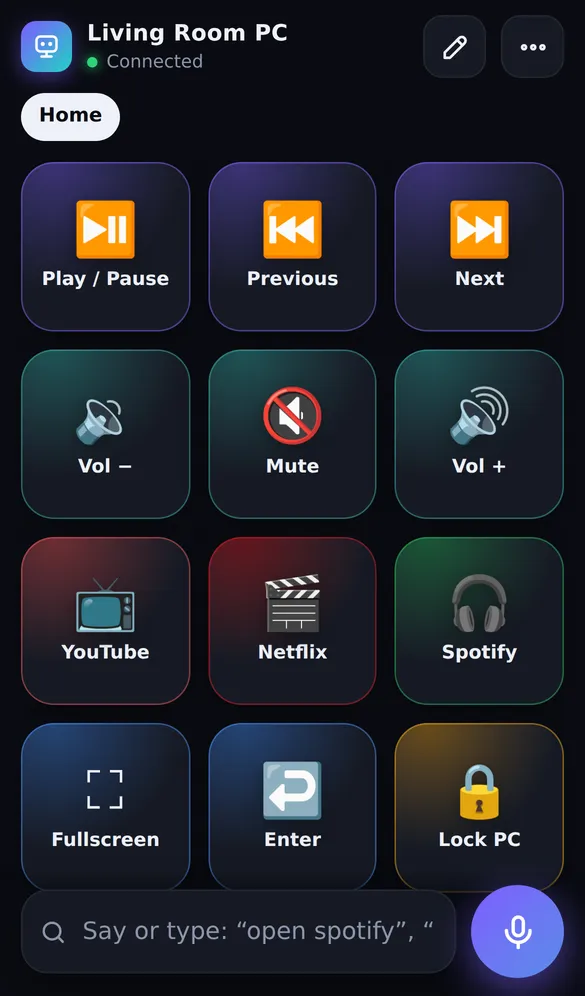
For text, SofaDeck's say-or-type bar types into whatever window has focus, so type lofi beats
fills a search box without a keyboard, and buttons can press Enter, Escape, the arrow keys and F11. It runs on Windows 10 or Windows 11 (64-bit) and macOS 11 Big Sur or later, on Apple silicon or Intel; the phone needs no app because the deck opens in its browser after a QR scan. Plenty of people use both: a mouse app for the odd click, and a deck for everything they do every day.
Tips for any phone mouse
- Turn the phone's auto-lock up (or off while it's on a charger) so the remote doesn't go dark mid-film.
- Raise the pointer speed on the computer if crossing a big screen takes several swipes.
- On a Mac, allow the helper under System Settings → Privacy & Security → Accessibility, or clicks and keys won't arrive.
- For a PC under the TV, see the HTPC remote guide; for comparisons of whole remote apps, see PC remote apps compared.
Sources
Frequently asked questions
Can I use my phone as a mouse for my PC without installing anything on the PC?
On Android 9 or later, yes: Bluetooth keyboard-and-mouse apps make the phone show up as an ordinary Bluetooth mouse and keyboard, so the PC needs no software, only Bluetooth. iPhones can't do this, because iOS doesn't let apps act as a Bluetooth mouse. Every Wi-Fi option needs a small helper program on the computer.
Can I use my phone as a keyboard for my PC over a USB cable?
Not with a normal phone. Acting as a USB keyboard needs the phone's USB port to pretend to be a keyboard, which Android only allows on rooted phones with special kernels, and iPhones not at all. Wi-Fi or Bluetooth is the practical route.
Is SofaDeck a phone mouse app?
No. SofaDeck has no trackpad. It turns the phone into big labeled buttons and a voice remote: launch apps, play/pause, volume, keys and typed text. If you mostly steer a pointer around, a mouse app suits you better; if you keep doing the same few things, buttons are faster.
Which phone mouse app works on both iPhone and Android?
Unified Remote, Remote Mouse and KDE Connect all have iPhone and Android apps plus a helper for the computer. KDE Connect is free and open source; the other two have free versions with paid extras.