Can I use my phone as a trackpad?
Yes. With a remote app running on the PC, your phone's touchscreen works like a laptop trackpad over your home Wi-Fi: drag to move, tap to click, two-finger tap to right-click and two-finger drag to scroll. SofaDeck's trackpad is free on Windows and runs in the phone's browser on iPhone or Android, so there's nothing to install on the phone.
- Install SofaDeck on your PC (free)
- Scan the QR code with your phone
- Tap
Works on iPhone & Android — no app needed. Scan the QR code on your PC with the phone's camera and the remote opens in its browser. On Android you can also add the optional Google Play app.
Disclosure: we make SofaDeck, which is one of the options below. Facts about other products were checked on 16 October 2026 and can change.
Your phone already has a large, accurate touch screen, which is exactly what a laptop trackpad is. With a small app on the PC, the phone can move the Windows pointer from the sofa, the bed or across a meeting room, with no mouse, dongle or Bluetooth pairing. This guide covers how it works, the gestures to expect, the apps that do it and when a real mouse is still the better tool.
How a phone trackpad works
The phone sends finger movements over your Wi-Fi to a helper program on the PC, and the helper moves the real Windows cursor. Because it travels over the network rather than Bluetooth, Windows sees no new device and nothing needs pairing in Settings. The trade-off is a few milliseconds of delay: fine for clicking a video, pressing Play or picking a file, not something you'd aim in a game with.
Set up the SofaDeck trackpad (Windows, free)
SofaDeck 1.0.4 added a trackpad and keyboard screen to the phone deck. It runs in the phone's browser, so there's no phone app to install, and it works on iPhone, Android and tablets:
- Install SofaDeck 1.0.4 or later on the Windows PC, from the Microsoft Store or sofadeck.com.
- Scan the QR code SofaDeck shows with your phone's camera; the deck opens in the phone's browser.
- Type the 6-digit PIN shown on the PC to pair the phone.
- Tap the mouse button (🖱) at the top of the deck to open the trackpad and keyboard screen.
The gestures are the ones you know from a laptop:
- Drag one finger to move the pointer; tap to click.
- Tap with two fingers to right-click.
- Drag two fingers up or down to scroll.
- Type in the text box to type on the PC, with Esc, Tab, arrow, Backspace and Enter keys underneath.
- Media buttons and a volume slider sit on the same screen, so you don't have to switch back to the deck to pause.
 Direct installer .exe · 3.7 MB Store version signed by Microsoft No account Local network only Signed updates SofaDeck installs on your Windows PC. Your phone is the remote — it works in the phone’s browser.One email from support@dixonappstudio.com. No list unless you tick the box. PrivacyOr on your PC, go to sofadeck.com/get
Other phone trackpad apps
| App | Phone side | Computers | Cost |
|---|---|---|---|
| SofaDeckGet it free on the Microsoft Store → | Any browser, no app | Trackpad on Windows; buttons and voice on Windows and Mac | Free; Pro $9.99 once |
| Unified Remote | iPhone / Android app | Windows, Mac, Linux | Free version; paid Full version |
| Remote Mouse | iPhone / Android app | Windows, Mac | Free version; paid extras |
| KDE Connect | Android app (iPhone version is limited) | Windows, Linux, Mac (beta) | Free, open source |
A full comparison of these apps is in PC remote apps compared.
Trackpad or buttons?
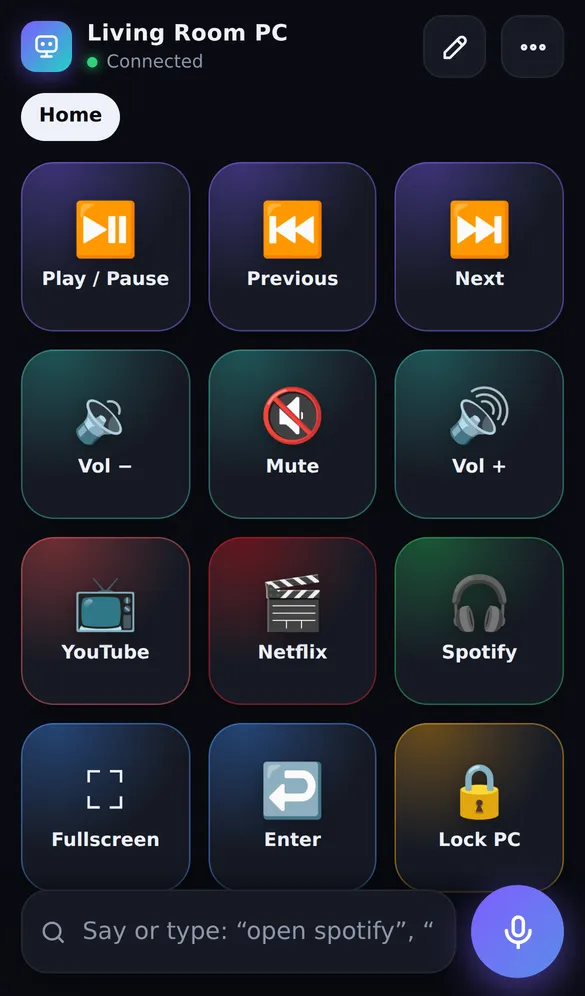
A trackpad is the right tool when you don't know in advance what you'll click: a web page, a file dialog, an odd settings window. For the things you do every evening, a button is faster: one tap for "open Netflix", "fullscreen" or "volume 30" beats steering a pointer across a TV. That's why SofaDeck puts both on the phone: a 12-button deck for the routine, and the trackpad for everything else.
Still clicking a lot? A proper pointing device is more comfortable for long sessions on the sofa. A lap keyboard with a touchpad or a trackball mouse works well: keyboards with touchpads on Amazon.
As an Amazon Associate we earn from qualifying purchases.
Fixes if the pointer doesn't move
- Phone and PC must be on the same Wi-Fi network (not a guest network that isolates devices).
- If the pointer moves on the desktop but not in one program, that program may be running as administrator; run it normally.
- On the Windows lock screen and sign-in screen, remote input is blocked by Windows itself. Sign in first.
- If the phone screen dims, its browser may pause; keep the phone awake while you use it.
Related: use your phone as a keyboard for your PC and every way to use a phone as a mouse and keyboard.
Frequently asked questions
How do I right-click and scroll with a phone trackpad?
In SofaDeck, tap with two fingers to right-click and drag with two fingers to scroll. Other apps use similar gestures; check each app's help screen.
Is the SofaDeck trackpad free?
Yes. The trackpad and keyboard screen is part of the free version on Windows. Pro ($9.99 once) adds more pages, hotkey combos and macros, not the trackpad.
Does the phone trackpad work on a Mac?
Not in SofaDeck yet: its trackpad and keyboard screen is Windows-only for now (SofaDeck's buttons and voice work on Mac). On a Mac, Unified Remote, Remote Mouse or Screen Sharing from an iPhone can move the pointer.
Does a phone trackpad work over the internet?
SofaDeck works on your home network only: the phone and PC must be on the same Wi-Fi. For control from outside the house, use a remote desktop app such as Chrome Remote Desktop.
Quick answers to related questions
- Can I use my phone as a mouse for my PC?
- Can I use my phone as a keyboard for my PC?
- Can I control my Windows PC from my iPhone?
- Can you control a Mac from an iPhone?
- Can I control OBS from my phone?
- What are the best cheap Stream Deck alternatives?
- What's the best HTPC controller or home theater PC remote?
- How do I connect Spotify from my phone to my laptop?