Can I open Steam Big Picture mode from my phone?
Yes. SofaDeck can open Big Picture mode from a phone button or by voice ("open Big Picture") using Steam's own steam://open/bigpicture link, and the arrow, Enter and Esc buttons move around it. That part is free. SofaDeck Pro imports your Steam, Epic and LaunchBox library so "play Hades" launches the game. It's a remote for the PC; to stream the game to your phone, use Steam Remote Play / Steam Link instead.
- Install SofaDeck on your PC (free)
- Scan the QR code with your phone
- Tap
Works on iPhone & Android — no app needed. Scan the QR code on your PC with the phone's camera and the remote opens in its browser. On Android you can also add the optional Google Play app.
Big Picture mode is Steam's TV interface for a PC under the TV, built for a controller. The awkward moments are before the controller is in your hand: starting Steam, opening Big Picture, finding the game, fixing the volume, and later putting the PC to sleep. A phone deck handles those from the sofa.
Searches for "Steam remote" mix two different things. Steam Remote Play streams a game from your PC to another screen. A phone remote, which is what SofaDeck is, presses buttons and launches things on the PC itself.
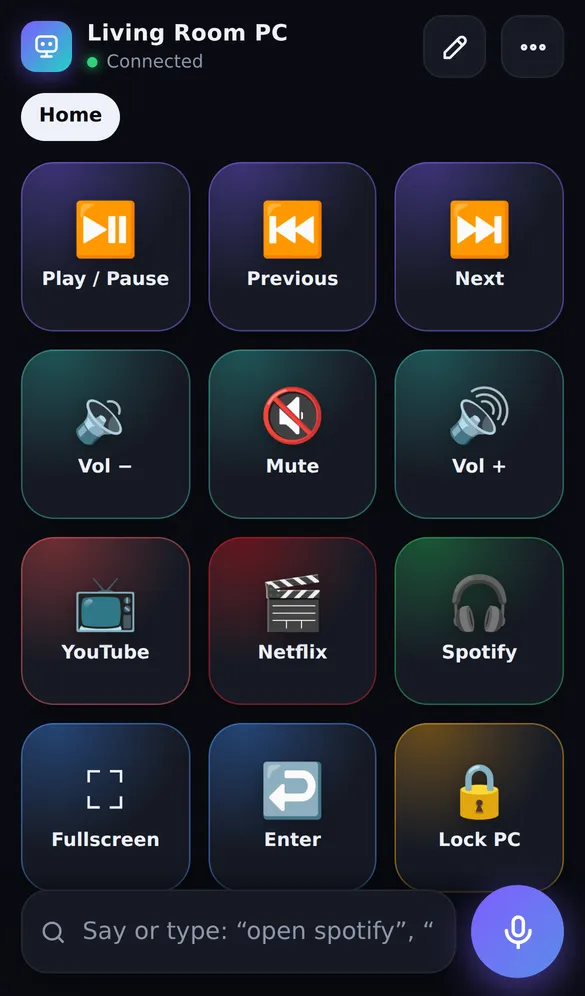
Set it up in 5 steps
- Install SofaDeck on the gaming PC and pair your phone (QR code + PIN).
- Add a Website button with the link steam://open/bigpicture, or just say "open Big Picture".
- Add ↑ ↓ ← →, Enter and Esc as Key buttons to move around Big Picture before the controller is on.
- With Pro, import your Steam library on the PC (Library → Import) so every game is a button and "play <game>" works by voice.
- Add Volume, Mute and a Sleep button for when you're done.
Buttons to add for Steam
| Button | What it sends | What it does | Plan |
|---|---|---|---|
| Big Picture | Website: steam://open/bigpicture | Opens Steam in Big Picture mode (starts Steam if needed). | Free |
| Steam library | Website: steam://open/games | Opens the Steam library in desktop mode. | Free |
| ↑ ↓ ← → | Keys: ↑, ↓, ←, → | Moves around Big Picture. | Free |
| Select | Key: Enter | Selects the highlighted item. | Free |
| Back | Key: Esc | Goes back a screen. | Free |
| Your games | Steam, Epic and LaunchBox import | Every installed game becomes a button; launch it by voice ("play Hades", "surprise me"). | Pro |
| Fullscreen toggle | Hotkey: Alt + Enter | Switches many PC games between fullscreen and a window. | Pro |
| Game Bar | Hotkey: Win + G | Opens the Xbox Game Bar (recording, audio, performance). | Pro |
| Volume − / + | Media keys: Volume down, Volume up | Changes the PC's volume. | Free |
| Live PC stats | SofaDeck's PC stats screen | CPU, memory and NVIDIA GPU temperature on the phone while you play. | Free |
| Sleep | PC power: sleep | Sleeps the PC after you confirm. | Free |
steam:// links are Steam's own; keyboard navigation in Big Picture is basic, a controller is still best inside it. The free version holds one page of 12 buttons, so start with the ones you reach for most; Pro removes the limit.
Or just say it
Tap the microphone on the phone (or type in the say-or-type bar) and SofaDeck runs the command on the PC. Any button also runs by saying its label. The full voice command list has the rest.
| Say | What happens |
|---|---|
open Big Picture | Opens Steam's Big Picture mode (free). |
open Steam | Opens your Steam library. |
play <game> / play <game> on Epic | Launches an imported game (Pro). |
how's my PC doing | Opens PC stats on the phone. |
What's free and what needs Pro
Everything in the table above is free except Your games, Fullscreen toggle, Game Bar. Pro is from $6.99 once for every phone you pair, with no subscription, and adds unlimited pages, hotkey combos, macros and Smart pages that switch the phone to your Steam page when Steam comes to the front (Windows). SofaDeck also offers a 7-day Pro trial.
Limits, honestly
- SofaDeck doesn't stream the game to your phone and isn't a game controller; use a controller in the game.
- Game import and voice launching are Pro. Free users can add a few games by hand as app buttons (one page of 12 buttons).
- Keys go to the window in front, so in-game buttons only work while the game has focus, and some games ignore simulated keys.
- Windows only for game import and PC stats.
SofaDeck runs on Windows 10 or Windows 11 (64-bit). The phone needs only a browser: iPhone or Android, no app to install, on the same Wi-Fi as the PC.
Other ways to control Steam from your phone
Steam Remote Play and the Steam Link app stream a game from your PC to a phone, tablet or TV, and Steam's own mobile app can install games remotely. A Steam Controller or any Xbox / PlayStation controller drives Big Picture itself. SofaDeck sits next to those: it starts things, sets the volume and puts the PC to sleep from the sofa.
Steam is a trademark of its owner. SofaDeck is made by Dixon App Studio and isn't affiliated with or endorsed by the makers of Steam. Shortcuts listed are the app's defaults at the time of writing and can change.
Frequently asked questions
Is the Steam remote free?
Opening Big Picture, navigation keys, volume and power buttons are free. Importing your Steam, Epic and LaunchBox games and launching them by voice is part of Pro.
Is this the same as Steam Remote Play?
No. Remote Play streams a game to another device. SofaDeck is a remote for the PC: it launches games and controls the PC, while the game plays on the PC's own screen.
Can my phone turn on the gaming PC?
SofaDeck Pro sets up Wake-on-LAN and gives you a wake button for a sleeping PC on the same network.
Does it work with Epic and LaunchBox too?
Yes, in Pro: Epic Games and LaunchBox libraries import the same way as Steam.