Disclosure: we make SofaDeck, which has Wake-on-LAN tools in it. The Windows steps below work without it. Checked on 20 October 2026.
You're on the sofa, the film is on the PC, and the PC is asleep in the other room. Getting up to press the power button is exactly the kind of thing a phone remote should save you. This guide explains how waking a PC over the network works, what has to be switched on first, and the ways to send the wake signal from your phone — plus the option of not letting it sleep in the first place.
How waking a PC over the network works
When a PC sleeps, its network card stays on just enough to listen for one special message, the magic packet: six bytes of FF followed by the PC's MAC address repeated sixteen times, sent as a broadcast on your home network. When the card hears its own address, it powers the PC up. That's Wake-on-LAN. Three things decide whether it works:
- The connection. Wired Ethernet: dependable. Wi-Fi: only some laptops support it, often only from Sleep.
- Windows settings. The network adapter must be allowed to wake the computer, with "Wake on Magic Packet" on.
- How it went to sleep. Sleep almost always works. Shut down works only on some PCs, usually after turning Fast Startup off and enabling Wake-on-LAN in the BIOS.
Step by step
- Use a network cable if you can: Wake-on-LAN is dependable on wired Ethernet and hit-and-miss over Wi-Fi.
- Turn Wake-on-LAN on in Windows for the network adapter (Device Manager, or SofaDeck → Wake & sleep → Set up Wake-on-LAN, which asks Windows for administrator permission first).
- Put the PC to sleep rather than shutting it down; waking from Sleep works on almost every wired PC.
- Note the PC's MAC address and the network's broadcast address (SofaDeck shows both on its Wake & sleep page).
- From the phone, send the wake signal: from another SofaDeck PC that's awake, from your router's Wake-on-LAN page, or with a Wake-on-LAN phone app on the same Wi-Fi.
The Windows side is covered in detail in how to turn on Wake-on-LAN in Windows 11.
Three ways to send the wake signal from a phone
- Another PC that's awake. If you have a second PC (or an always-on mini PC), it can send the packet for you. With SofaDeck Pro on both, the asleep PC's phone screen offers "Wake it from Office PC", and the other PC sends the signal in one tap.
- Your router. Many routers have a Wake-on-LAN page in their app or web settings (look under advanced settings, network tools or the device list). Pick the PC or type its MAC address.
- A Wake-on-LAN phone app. Plenty of free apps send the packet from the phone itself while it's on the same Wi-Fi. Add a device with the PC's MAC address, the broadcast address (for example 192.168.1.255) and port 9.
What SofaDeck does for you
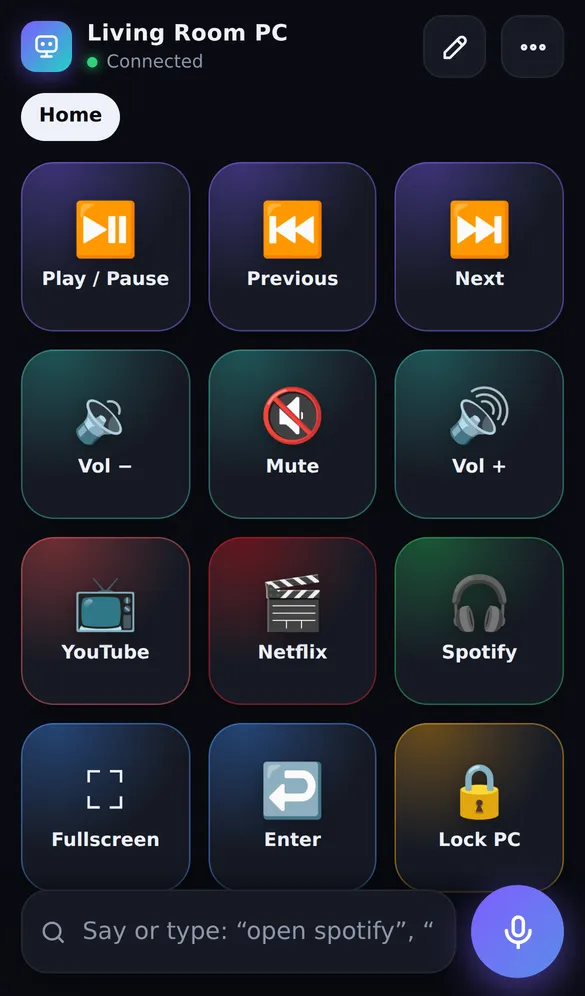
SofaDeck is a phone remote for Windows that runs in the phone's browser. Its Wake & sleep page on the PC shows the adapter, whether it's wired or Wi-Fi, the MAC and broadcast addresses, and whether Windows has Wake-on-LAN and Fast Startup on. With SofaDeck Pro ($9.99 once):
- One-click setup. SofaDeck lists exactly what it will change, then Windows asks for administrator permission; nothing changes if you say no.
- "PC is asleep" screen. When the phone can't reach the PC, it shows the ways to wake it with the addresses filled in, instead of a dead page.
- Wake buttons. One SofaDeck PC finds the others on the network and wakes them from the phone menu.
And for free: Screen off, stay ready turns the display off but keeps the PC awake, so there's nothing to wake — open SofaDeck on the phone and the screen comes back. A sleep timer ("sleep in 45 minutes") covers the other end of the evening.
 Direct installer .exe · 3.7 MB Store version signed by Microsoft No account Local network only Signed updates SofaDeck installs on your Windows PC. Your phone is the remote — it works in the phone’s browser.One email from support@dixonappstudio.com. No list unless you tick the box. PrivacyOr on your PC, go to sofadeck.com/get
If it doesn't wake
- Check the PC is asleep, not unplugged or hibernating with the power supply switched off.
- Send the packet to the network's broadcast address (ending in .255 on most home networks), not to the PC's own IP.
- Phone and PC must be on the same network, not a guest Wi-Fi that keeps devices apart.
- From Shut down: turn off Fast Startup and look for Wake on LAN / Power On By PCI-E in the BIOS.
- On Wi-Fi: try a cable. If that works, the Wi-Fi card is the limit.
Related: shut down your PC from your phone, shutdown and sleep timers for Windows and the best HTPC remote.
Frequently asked questions
Can I turn on my PC from my phone?
Yes, if the PC is asleep (or, on some PCs, shut down) and its network adapter has Wake-on-LAN turned on. The phone, or something on your network, sends a small "magic packet" that tells the network card to power the PC up. A fully unplugged PC can't be woken.
Why can't a web page wake my PC?
The wake signal is a network broadcast that browsers aren't allowed to send. That's why waking goes through a device that can: another PC on the network, your router, or a Wake-on-LAN app. SofaDeck Pro's phone screen shows exactly those options with your PC's details filled in.
Does Wake-on-LAN work over Wi-Fi?
Sometimes. Many laptops can't wake from Wi-Fi at all, and others only from Sleep. A wired Ethernet connection is the reliable way. SofaDeck tells you which kind of connection the PC uses.
Why does my PC wake from Sleep but not from Shut down?
Windows' Fast Startup puts the PC into a hybrid shutdown that many network adapters can't wake from. Use Sleep, or turn Fast Startup off; some PCs also need Wake-on-LAN enabled in the BIOS/UEFI setup.
Is there a way to avoid waking the PC at all?
Yes: SofaDeck's free "Screen off, stay ready" turns the display off while the PC stays awake, so the phone always connects instantly and opening SofaDeck turns the screen back on. You can let it really sleep after a few hours without phone use.
Is Wake-on-LAN safe?
On a home network the magic packet can only power the PC on; it doesn't log in or run anything. Routers don't forward it from the internet unless you set that up.