You're in bed, the PC is still on downstairs. Or the film finished and the HTPC is humming under the TV. Shutting a computer down from your phone is easy once something on the PC is listening — and the one thing a phone can't do without extra setup is turn a PC back on. Here are the options, from no-install to fully scheduled.
Option 1: a phone remote with a power button
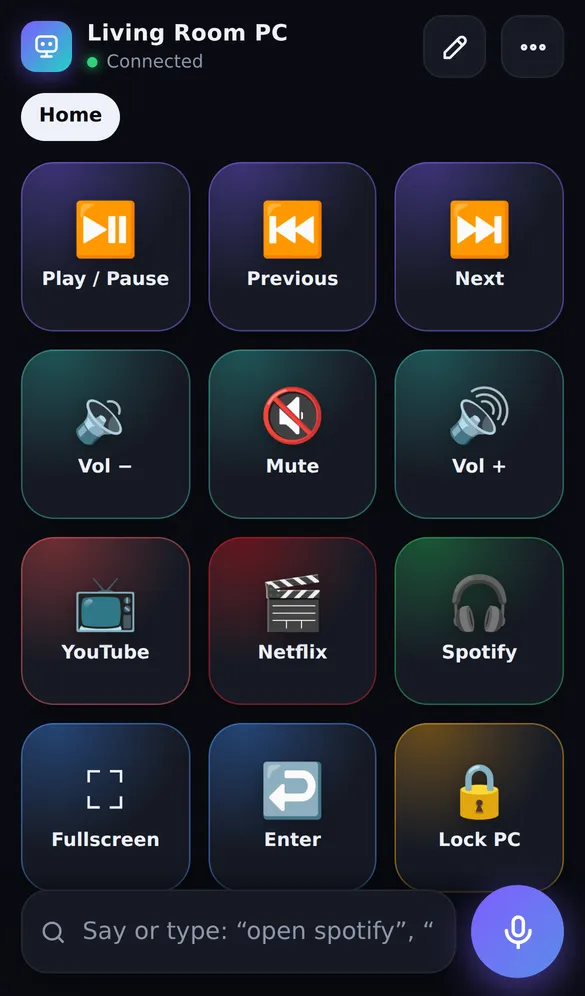
Any PC remote app that runs on the computer can shut it down. With SofaDeck the phone needs no app: open the deck in the browser and say shut down
, restart
or sleep
, or tap a power button. Every power action shows a confirmation on the phone first, so a misheard command can't switch off a PC mid-download. Lock the PC
and screen off
work too, without confirmation.
- Install SofaDeck on the PC and pair your phone by scanning the QR code and typing the PIN.
- Open the deck on the phone and say 'shut down', 'restart' or 'sleep' (or tap a power button you added).
- Confirm on the phone. The PC runs the command.
 Direct installer .exe · 3.7 MB Store version signed by Microsoft No account Local network only Signed updates SofaDeck installs on your Windows PC. Your phone is the remote — it works in the phone’s browser.One email from support@dixonappstudio.com. No list unless you tick the box. PrivacyOr on your PC, go to sofadeck.com/get
Unified Remote's free version also has power controls, and Chrome Remote Desktop lets you reach the Start menu from anywhere. See PC remote apps compared.
Option 2: the built-in shutdown command
Windows' shutdown command is what most remotes run behind the scenes. Useful forms:
| Command | Does |
|---|---|
shutdown /s /t 0 | Shut down now |
shutdown /r /t 0 | Restart now |
shutdown /s /t 3600 | Shut down in one hour (sleep timer) |
shutdown /h | Hibernate |
shutdown /a | Cancel a pending shutdown |
A shortcut file (.lnk) or a .bat containing one of these can be launched from any deck button — a "Shut down in 1 hour" button is a nice sleep timer for films. On a Mac, use the Apple menu or sudo shutdown -h now in Terminal; SofaDeck's Mac app handles sleep and shut down itself.
You'll also find guides to shutdown /m \\computer for shutting down another PC over the network. That needs administrator rights on the target and the right firewall and remote-management settings, and it's built for office networks rather than homes. A phone remote is far simpler.
Option 3: turning the PC back on (Wake-on-LAN)
A switched-off PC isn't running any remote, so waking it needs Wake-on-LAN: the network adapter stays powered and listens for a "magic packet" from a Wake-on-LAN app on your phone. To use it:
- Enable Wake-on-LAN (sometimes "Power on by PCI-E") in the BIOS/UEFI.
- In Device Manager → your network adapter → Properties, enable "Wake on Magic Packet" and on the Power Management tab allow it to wake the computer.
- Use Ethernet: Wake-on-LAN over Wi-Fi is rarely supported.
- On Windows, Fast Startup can stop a fully shut-down PC from waking; if it doesn't work, try from sleep first, or turn Fast Startup off.
Simpler alternative: use sleep instead of shut down. A sleeping PC wakes with a key or mouse press and is ready in seconds — the HTPC remote guide recommends it for living-room PCs. SofaDeck 1.0.7 adds a sleep timer and a "screen off, stay ready" mode (free), and Wake-on-LAN setup plus wake buttons in Pro: see wake your PC from your phone and shutdown timers for Windows.
Sources
Frequently asked questions
How do I shut down my PC from my phone?
Use a remote that runs on the PC and has a power button: SofaDeck (say 'shut down' or tap a button, then confirm on the phone), Unified Remote's power remote, or Chrome Remote Desktop to reach the Start menu. All need the PC to be on and connected.
Can I turn my PC on from my phone?
Only with Wake-on-LAN, and only if the PC's BIOS/UEFI and network adapter support it and it's enabled. A wake-on-LAN app on the phone sends a 'magic packet' on the home network. Wake-on-LAN generally works over Ethernet; Wi-Fi wake support is rare. Remotes that run on the PC itself can't wake it, because they're off too.
What's the shutdown command for Windows?
shutdown /s /t 0 shuts down immediately; shutdown /r /t 0 restarts; shutdown /h hibernates; shutdown /a cancels a pending shutdown. Replace 0 with a number of seconds for a delay, e.g. shutdown /s /t 3600 for one hour.
Can SofaDeck shut down my PC by accident?
No. Shut down, restart, sleep and sign out always show a confirmation on the phone first, so a stray tap or misheard voice command does nothing until you confirm.