Disclosure: we make SofaDeck, whose Send to PC is one of the options below. Facts about other tools were checked on 20 October 2026 and can change.
You took the photo on your phone, but the slide deck, the spreadsheet or the print-ready PDF lives on the PC. Moving one file shouldn't mean hunting for a cable or emailing yourself. This guide compares the ways to send files from a phone to a Windows PC and shows the quickest one when both are on the same Wi-Fi: no cable, no cloud upload and no app on the phone.
The ways to get a file from your phone to your PC
- USB cable. Reliable and fast for big batches, but you need the right cable, the phone has to be unlocked and set to file transfer, and iPhones show only the camera roll.
- Email or a messaging app to yourself. Fine for one small file. Attachments are size-limited, photos are often compressed, and the file travels through a server and back.
- A cloud drive. Good for keeping files, slow for moving one: the file uploads to the internet, then downloads again on the PC, and both need the drive's app or a browser sign-in.
- Phone-maker and system tools. Some Android phones and Windows tools can share files nearby, and Apple's AirDrop works between Apple devices. Whether they work depends on the phone brand, Bluetooth and accounts, and AirDrop doesn't reach Windows.
- A local transfer app on the PC. A program on the PC receives files over your home network from the phone's browser. That's what SofaDeck's Send to PC does: any phone with a browser, any file type, straight into a folder on the PC.
Send files to your PC with SofaDeck
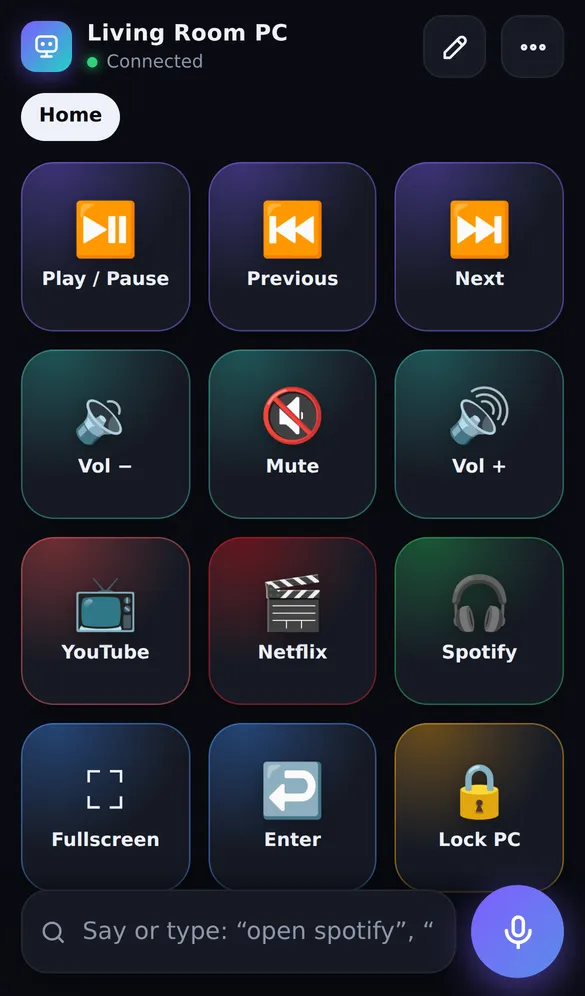
SofaDeck is a phone remote for Windows: the deck of buttons, the trackpad and the voice remote open in the phone's browser after a one-time QR pairing. Since 1.0.6 it also moves files and text. Set it up once and it's two taps after that:
- Install SofaDeck 1.0.6 or later on the Windows PC and pair your phone: scan the QR code SofaDeck shows and type the PIN.
- On the phone, tap the send button (📤) at the top of the deck.
- Tap "Send photos or files" and pick one or more photos, videos or documents. A progress bar shows each upload.
- On the PC, open Downloads › SofaDeck: the files are there, under their own names. Nothing is opened or run automatically.
- To move text instead, paste it in the box and tap "Copy on PC", then press Ctrl+V on the PC. A link can open straight in the PC's browser with "Open on PC".
- Any file type. Photos, screen recordings, PDFs, documents, zip files. They keep their names; a second file with the same name is saved as "name (2)" instead of overwriting the first.
- Free up to 10 MB per file (50 MB on installs from before 1.0.18); SofaDeck Pro sends files of any size up to 4 GB.
- Clipboard both ways. Send a code, an address or a long message to the PC's clipboard, or pull what you copied on the PC onto the phone.
- Links open on the PC. Found a video on your phone? "Open on PC" plays it in the PC's browser, handy for a PC connected to the TV. On Android, install SofaDeck to the home screen and it appears in the phone's Share menu.
 Direct installer .exe · 3.7 MB Store version signed by Microsoft No account Local network only Signed updates SofaDeck installs on your Windows PC. Your phone is the remote — it works in the phone’s browser.One email from support@dixonappstudio.com. No list unless you tick the box. PrivacyOr on your PC, go to sofadeck.com/get
Is it safe?
Only phones you paired with the PIN shown on the PC can send anything, and the transfer never leaves your home network. Files are saved, not opened: SofaDeck never runs what a phone sends. The PC's Settings page lists what arrived and can turn sending off for phones while keeping the remote working.
If a transfer fails
- The phone and PC must be on the same Wi-Fi network (not a guest network that keeps devices apart).
- Keep the phone's screen on during a large upload; phones pause browser uploads when they lock.
- Files over the free size (10 MB, or 50 MB on installs from before 1.0.18) need SofaDeck Pro; the phone says so before it starts.
- Check that "Phones can send to this PC" is on in SofaDeck's Settings on the PC.
Related: every way to control a PC from your phone, use your phone as a keyboard for your PC and print from your phone on the PC's printer.
Frequently asked questions
How do I send files from my phone to my PC without a cable?
Use something that moves files over your home Wi-Fi: SofaDeck's Send to PC (free, Windows) saves photos and files from the phone's browser into Downloads › SofaDeck on the PC. Cloud drives and email work too, but they upload the file to the internet and back.
Does it work from an iPhone to a Windows PC?
Yes. SofaDeck runs in the phone's browser, so an iPhone, an Android phone or a tablet can all send files and text to a Windows PC. There's no app to install on the phone.
Do the files go through the cloud?
No. The phone sends them straight to the PC over your home network. Nothing is uploaded to a server, and there's no account.
Is there a size limit?
Free SofaDeck sends files up to 10 MB each (50 MB on installs from before SofaDeck 1.0.18), which covers photos and documents. SofaDeck Pro ($9.99 once) sends files of any size up to 4 GB, such as long videos.
Can I copy text from my phone and paste it on my PC?
Yes. Paste the text in SofaDeck's Send box and tap "Copy on PC"; it lands on the PC's clipboard, ready for Ctrl+V. "Get the PC's clipboard" does the reverse.
Can a phone put a program on my PC and run it?
No. Received files are saved in Downloads › SofaDeck and never opened or run. Only paired phones can send, and you can turn sending off in SofaDeck's settings on the PC.