Can I control Jellyfin on my PC from my phone?
Yes. Jellyfin Media Player's TV mode is navigated with arrow keys, Enter and back, and SofaDeck turns those into big phone buttons, with Play/Pause and volume on the media keys. It's free and needs no Jellyfin plugin or server setting. Jellyfin's own apps can also remote-control a playing session; SofaDeck adds the PC's volume, sleep timer and power buttons.
- Install SofaDeck on your PC (free)
- Scan the QR code with your phone
- Tap
Works on iPhone & Android — no app needed. Scan the QR code on your PC with the phone's camera and the remote opens in its browser. On Android you can also add the optional Google Play app.
Jellyfin is the free, self-hosted media server, and Jellyfin Media Player is its desktop app for a PC on the TV, with a fullscreen TV layout. Like Kodi and Plex HTPC it is happy with a keyboard, so a phone that presses the right keys becomes its remote.
SofaDeck runs on the PC and serves the remote to your phone's browser over your Wi-Fi. It doesn't touch your Jellyfin server at all; it presses keys on the PC that's playing.
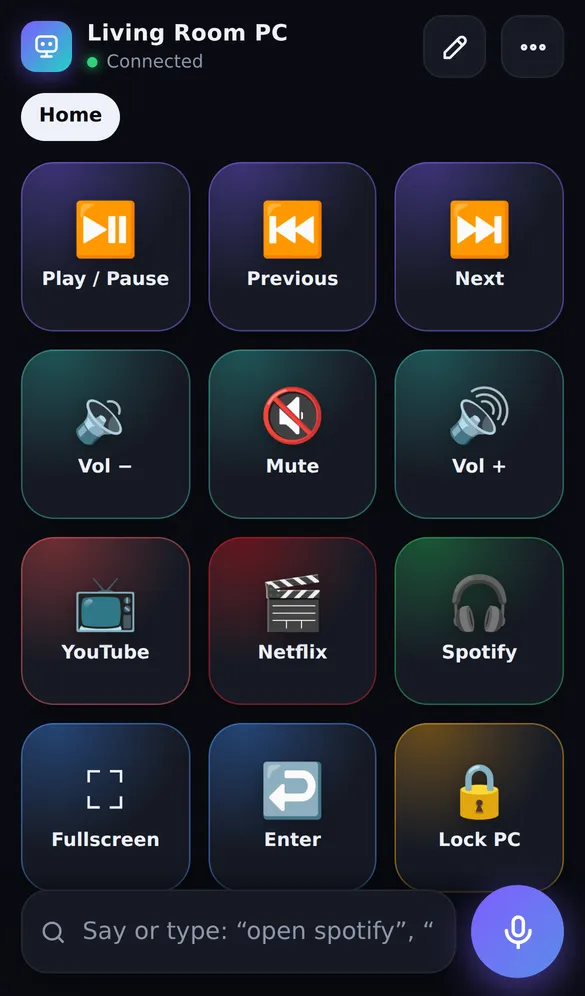
Set it up in 5 steps
- Install SofaDeck on the PC running Jellyfin Media Player (or Jellyfin in a browser).
- Scan the QR code with your phone and type the PIN.
- Add Key / hotkey buttons for ↑ ↓ ← →, Enter and Esc (back).
- Add Play/Pause, Volume − / + and Mute as Media buttons.
- Add a button that opens Jellyfin Media Player, picked from the imported Start Menu apps.
Buttons to add for Jellyfin
| Button | What it sends | What it does | Plan |
|---|---|---|---|
| ↑ ↓ ← → | Keys: ↑, ↓, ←, → | Moves through Jellyfin's TV layout. | Free |
| OK | Key: Enter | Selects the highlighted item. | Free |
| Back | Key: Esc | Goes back (Backspace also works in many versions). | Free |
| Play / Pause | Media key: Play/Pause | Media key: pause and resume. | Free |
| Play / Pause (key) | Key: Space | Space pauses while the player is in front. | Free |
| Next / Previous | Media keys: Next track, Previous track | Media keys: next and previous item. | Free |
| Volume − / + | Media keys: Volume down, Volume up | Changes the PC's volume. | Free |
| Fullscreen | Key: F | Toggles fullscreen in the player (F11 for a browser window). | Free |
| Open Jellyfin | App: Jellyfin Media Player (imported from the Start Menu) | Starts the app from the couch. | Free |
| Screen off | PC power: screen off | Display off, PC keeps playing (for music). | Free |
Keys can differ between Jellyfin Media Player versions and the web player; test each button once. The free version holds one page of 12 buttons, so start with the ones you reach for most; Pro removes the limit.
Or just say it
Tap the microphone on the phone (or type in the say-or-type bar) and SofaDeck runs the command on the PC. Any button also runs by saying its label. The full voice command list has the rest.
| Say | What happens |
|---|---|
pause | Media Play/Pause key. |
next song | Media Next key (music libraries). |
volume 25 | Sets the PC's volume. |
open Jellyfin | Runs your Open Jellyfin button by its label. |
What's free and what needs Pro
Everything on this page is in the free version. Pro (from $6.99 once, no subscription) adds more pages, hotkey combos, macros and Smart pages that switch the phone to your Jellyfin page when Jellyfin comes to the front (Windows), if you want more later. See Pro.
Limits, honestly
- No library browsing or seek bar on the phone; you navigate on the TV with the arrow buttons.
- Keys go to the window in front; the media keys go to whichever app Windows thinks is playing.
- Jellyfin clients on TVs, Fire TV or Android TV boxes aren't PCs, so SofaDeck can't control them.
SofaDeck runs on Windows 10 or Windows 11 (64-bit) and on the Mac (macOS 11 Big Sur or later, on Apple silicon or Intel). The phone needs only a browser: iPhone or Android, no app to install, on the same Wi-Fi as the PC.
Other ways to control Jellyfin from your phone
Jellyfin's own phone app and web client can remote-control another active Jellyfin session from the cast/play-on menu, with your library on the phone. That is the best way to pick a film. SofaDeck is for the PC around it: volume, a sleep timer, the screen and power, and the other apps on that PC.
Jellyfin is a trademark of its owner. SofaDeck is made by Dixon App Studio and isn't affiliated with or endorsed by the makers of Jellyfin. Shortcuts listed are the app's defaults at the time of writing and can change.
Frequently asked questions
Is it free?
Yes. Arrows, Enter, Esc and Space are single keys, and media and volume keys are free in SofaDeck. Pro adds more pages, Smart pages and macros.
Does SofaDeck need access to my Jellyfin server?
No. It never talks to Jellyfin. It presses keys on the PC that runs the player.
Does it work on a Mac?
Yes for keys and media keys (allow SofaDeck under Accessibility). The phone trackpad is Windows-only.