Disclosure: we make SofaDeck, which is one of the options below. Facts about Windows and other products were checked on 23 October 2026 and can change. SofaDeck is not affiliated with or endorsed by Microsoft or Nuance; all trademarks belong to their owners.
Short answer: Windows Speech Recognition is deprecated. Windows 10 still has it, but current Windows 11 builds replace it with Voice access, which does the same job better and works offline. For dictation, use voice typing (Win+H). For long professional dictation, Dragon is the paid option. For quick commands from across a room, a phone voice remote is the easiest fix. Here is how they compare and which to pick.
What happened to Windows Speech Recognition
Windows Speech Recognition (WSR) shipped with Windows Vista and stayed almost unchanged for fifteen years. Microsoft added it to its list of deprecated features at the end of 2023 and, from the second half of 2024, began replacing it with Voice access on Windows 11 22H2 and later. If you search for it on a current Windows 11 PC, you are pointed to Voice access. Windows 10 keeps WSR, but Windows 10 itself has reached the end of standard support, so it is worth learning the replacement.
The alternatives compared
| Voice access | Voice typing (Win+H) | Dragon | SofaDeck voice remote | |
|---|---|---|---|---|
| Price | Free, built in | Free, built in | Paid (check Nuance) | Free; Pro $9.99 once |
| Windows | 11 (22H2+) | 10 and 11 | Windows (check edition) | 10 and 11 |
| Control apps and clicks | Yes, full | No | Yes | Commands and your buttons |
| Dictation | Yes | Yes | Yes, its strength | Short text ("type …") |
| Works offline | Yes, after model download | Depends on settings and language | Yes | Yes with PC recognition; phone speech uses the phone's service |
| Microphone | PC mic / headset | PC mic / headset | PC mic / headset | Your phone |
| Best for | Hands-free use at the desk | Writing emails and documents | Heavy professional dictation | Couch, TV PC, quick commands |
Checked 23 October 2026 on Microsoft's and Nuance's sites. Features and prices change — confirm before you rely on them.
Moving from WSR to Voice access
- Open Settings → Accessibility → Speech and turn on Voice access. Accept the speech model download.
- Run the interactive guide it offers; it teaches the core commands in a few minutes.
- Old habits map across: "start listening" becomes "voice access wake up", "mousegrid" becomes "show grid", "show numbers" stays the same, and "what can I say" still opens the list.
- Turn on "Start voice access after you sign in" if you rely on it every day.
Our list of voice commands for Windows has the full table for each tool.
When a phone voice remote fits better
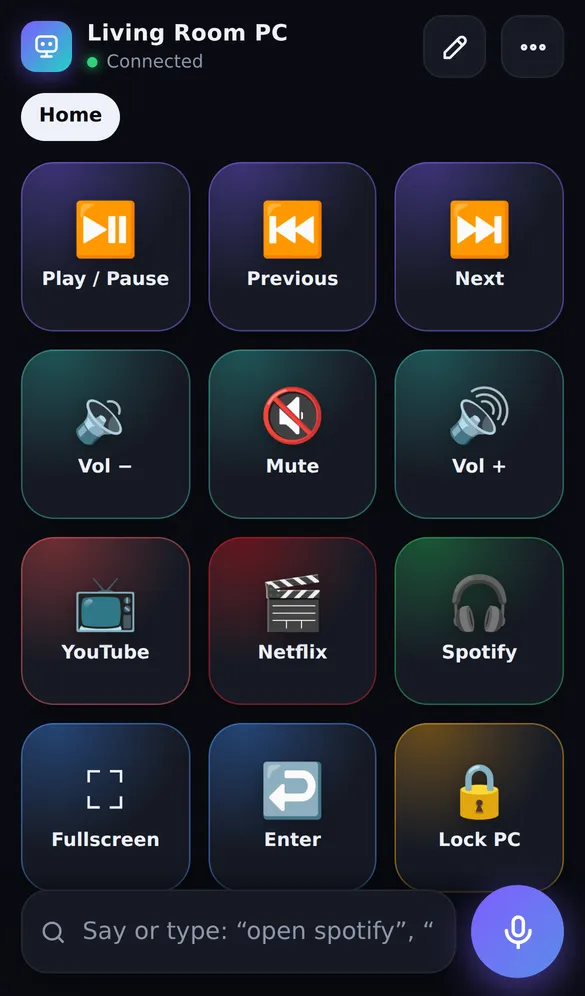
PC microphones struggle across a room: fans, TV audio and distance all hurt accuracy. If what you want is "pause", "volume 20", "open Netflix" or "sleep in an hour" from the sofa, put the microphone in your hand instead. SofaDeck runs in the tray on your PC and serves a remote to your phone's browser — no phone app — with a mic button that understands more than 40,000 phrasings and a grid of big buttons for the things you'd rather tap. It can also let the PC recognise the speech offline. It is not a dictation suite or a full hands-free replacement for Voice access; it is the quick remote that complements it.
 Direct installer .exe · 3.7 MB Store version signed by Microsoft No account Local network only Signed updates SofaDeck installs on your Windows PC. Your phone is the remote — it works in the phone’s browser.One email from support@dixonappstudio.com. No list unless you tick the box. PrivacyOr on your PC, go to sofadeck.com/get
See also how to control your PC with your voice and the SofaDeck voice commands list.
Frequently asked questions
Is Windows Speech Recognition still available?
On Windows 10, yes. On Windows 11, Microsoft deprecated Windows Speech Recognition and replaced it with Voice access; from the second half of 2024 current Windows 11 builds no longer include it and point you to Voice access instead.
What replaced Windows Speech Recognition?
Voice access, in Windows 11 22H2 and later. It controls apps, clicks by name or number, scrolls and dictates, and it runs on the PC after a one-time speech model download. For dictation only, voice typing (Win+H) is on both Windows 10 and 11.
What is Kinect for Windows Speech Recognition?
It is a speech recognition language pack for the Microsoft Speech Platform that the Kinect for Windows SDK and some apps install. It is not the Windows Speech Recognition feature. If you don't use a Kinect or an app that depends on it, uninstalling it from Settings → Apps is generally harmless; if an app stops recognising speech afterwards, reinstall it.
Is Windows Speech Recognition better than Dragon?
For dictating long documents, Dragon has historically been more accurate and is aimed at professional use, but it is a paid product. For controlling Windows, Voice access is free and built in. Check Nuance's site for Dragon's current editions and prices.